The dashboard
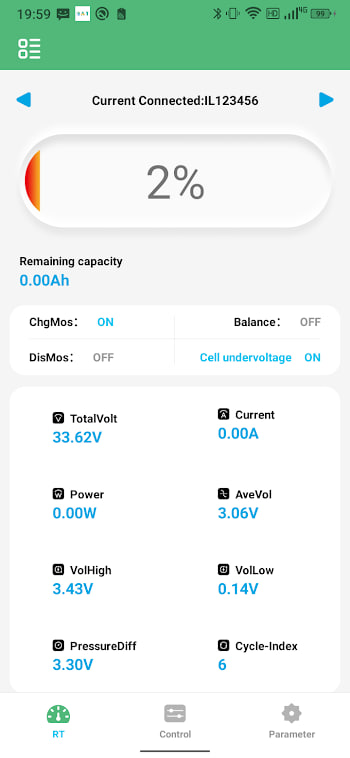
When you connect, the dashboard is the first thing you see. It packs the essentials into one screen: total pack voltage, net current in or out, state of charge, and the highest and lowest cell voltages. Think of it as the cockpit. A glance tells you whether the pack is charging, discharging, or resting, and whether anything is drifting out of line.
Per-cell voltage view
Tap into the cell view and you get a bar for every cell in the pack. This is where BAT-BMS earns its keep. Healthy cells sit within a few millivolts of each other. A cell that lags well below the rest is either undercharged or aging, and the app highlights it so you cannot miss it. The cell voltage guide goes deep on reading these numbers.
Protection status
The protection panel lists every safety flag the BMS can raise: over-voltage, under-voltage, over-current, over-temperature, and short circuit. In normal use they all read clear. When one trips, it lights up and the app usually shows what triggered it. This is your early warning before a small issue becomes a damaged cell.
Temperature monitoring
Most BMS modules feed one or more temperature sensors to the app. You can see the current reading and, on some modules, set the thresholds at which charge or discharge gets cut. Heat is the silent killer of lithium packs, so this screen deserves a look during heavy use. See the temperature guide for safe limits.
Charge and discharge limits
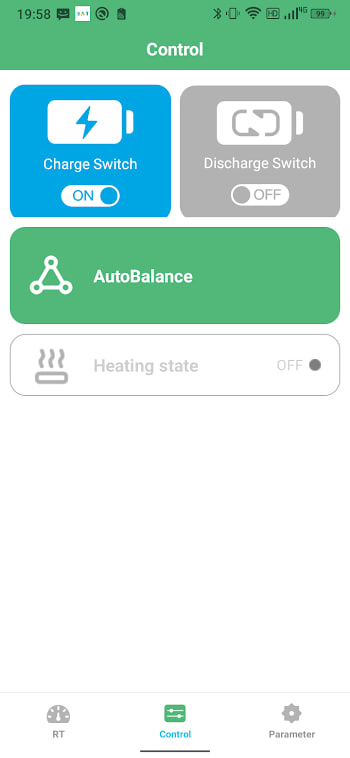
Where the module supports it, BAT-BMS lets you set upper and lower limits for current. This is handy if you want to baby an aging pack or protect a small battery from a big inverter. Change one value at a time and watch the effect on the dashboard before moving on.
Balancing
The balancing view shows which cells the BMS is currently bleeding down to match the others. Balancing is automatic, but the view lets you confirm it is actually happening. If it never engages and your cells keep drifting, the balancing section explains what to check.
Settings and parameters
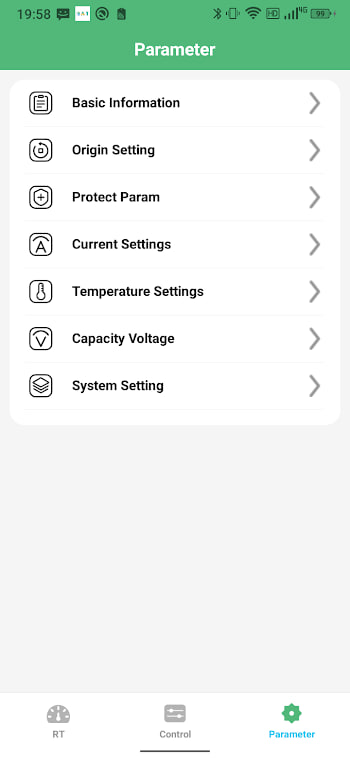
Settings is where you set cell count, chemistry, capacity, and protection thresholds. Tread carefully here — wrong values can make the BMS trip constantly or, worse, fail to protect. Take photos before you change anything, so you can restore the originals if a tweak misbehaves.